
Portal & Credentials
The flinkey Portal is where you manage all partner-specific developer settings. Actual credential values are never part of this documentation — each partner retrieves their own values from the Portal and configures them in their own environment.
Developer section overview
Section titled “Developer section overview”The Developer section contains three tabs: API, Allgemein (General) and SDK.
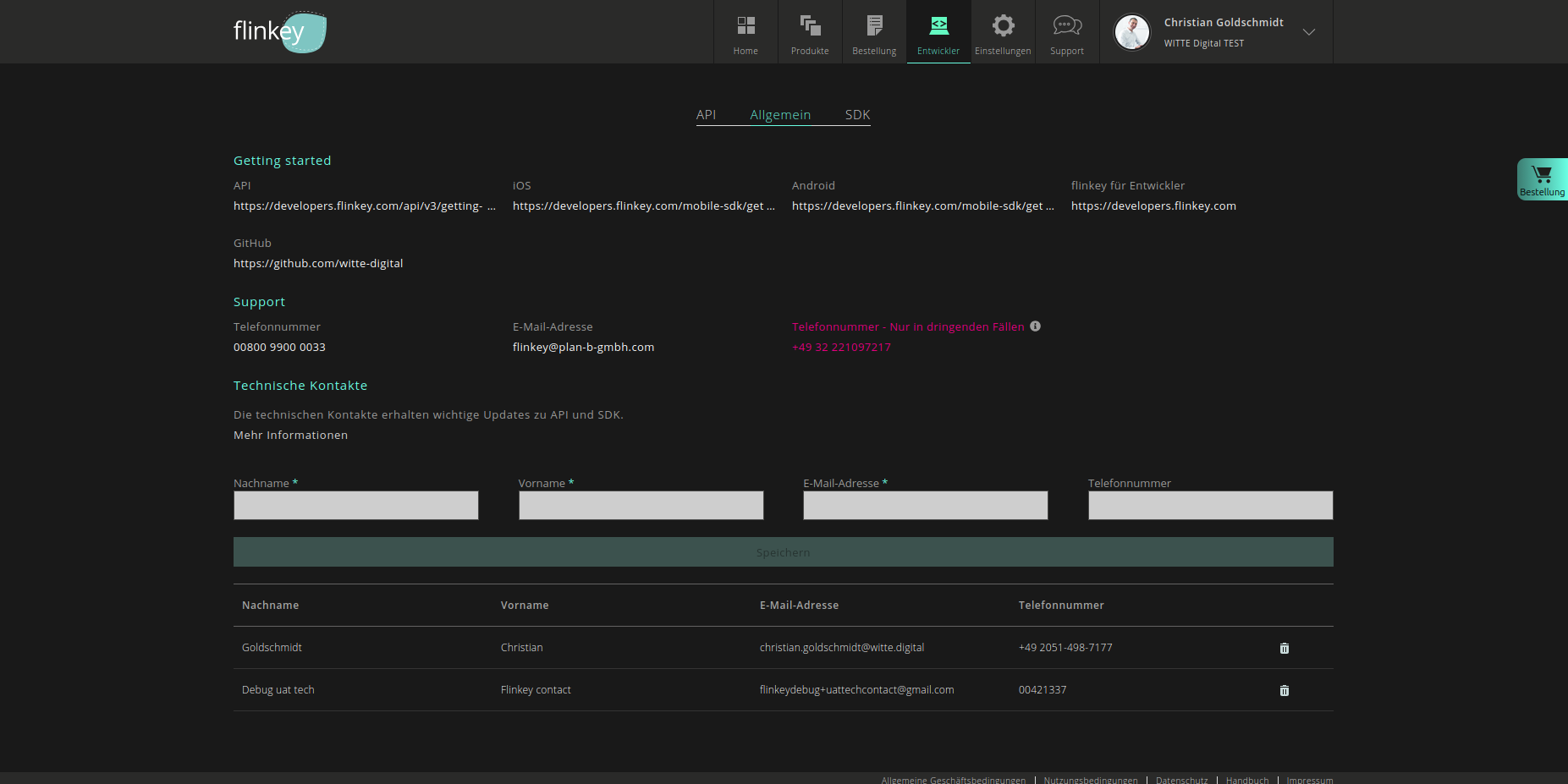
General tab
Section titled “General tab”The General tab provides documentation links, support contacts and technical contact management. Make sure at least one technical contact from your team is registered so you receive important updates.
API tab
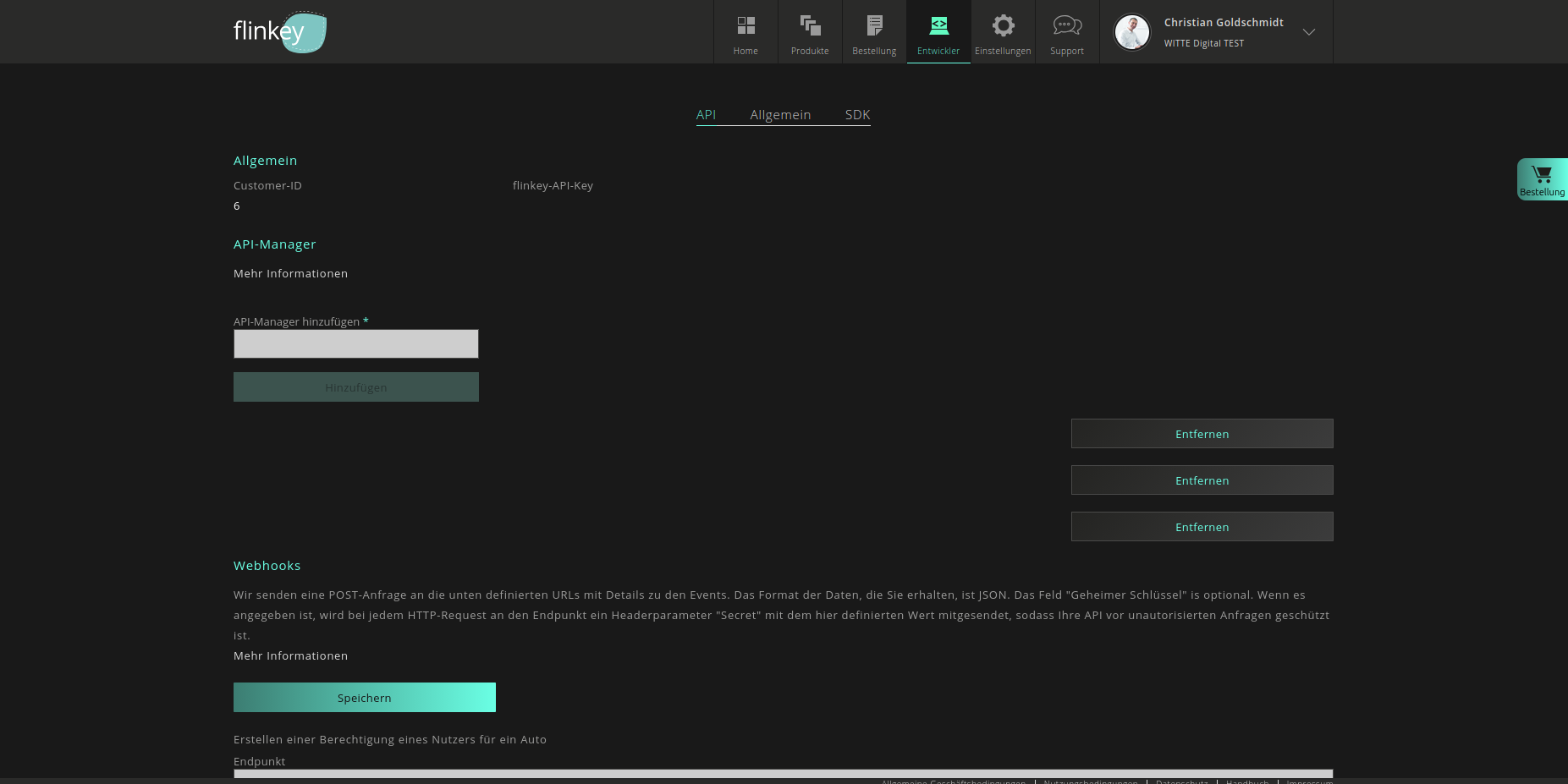
Section titled “API tab”The API tab contains your Customer-ID, flinkey-API-Key, API Manager management and webhook configuration.
Webhook configuration (API tab)
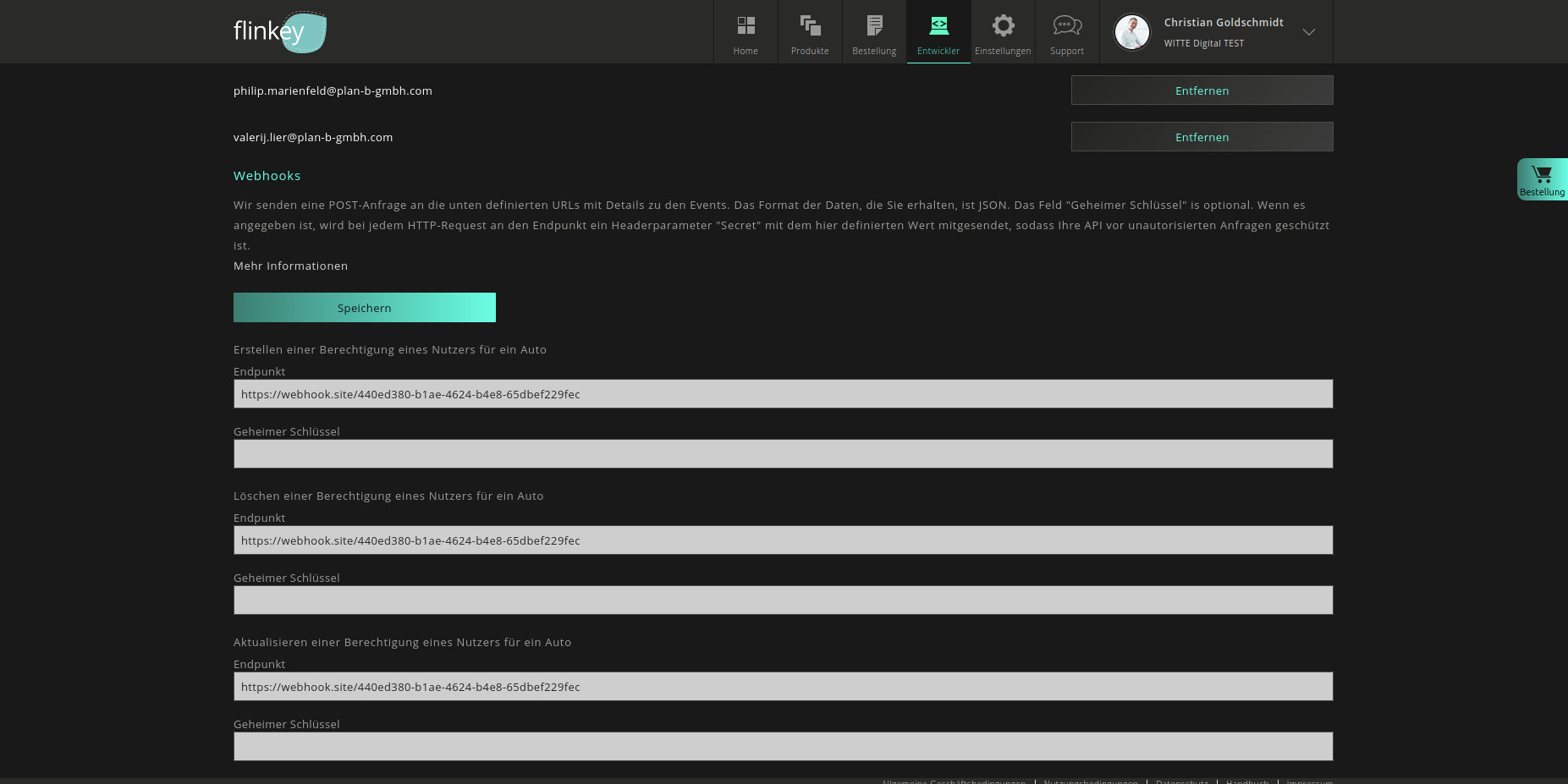
Section titled “Webhook configuration (API tab)”Scroll down in the API tab to find the webhook endpoint configuration with secret fields for each assignment event type.
SDK tab
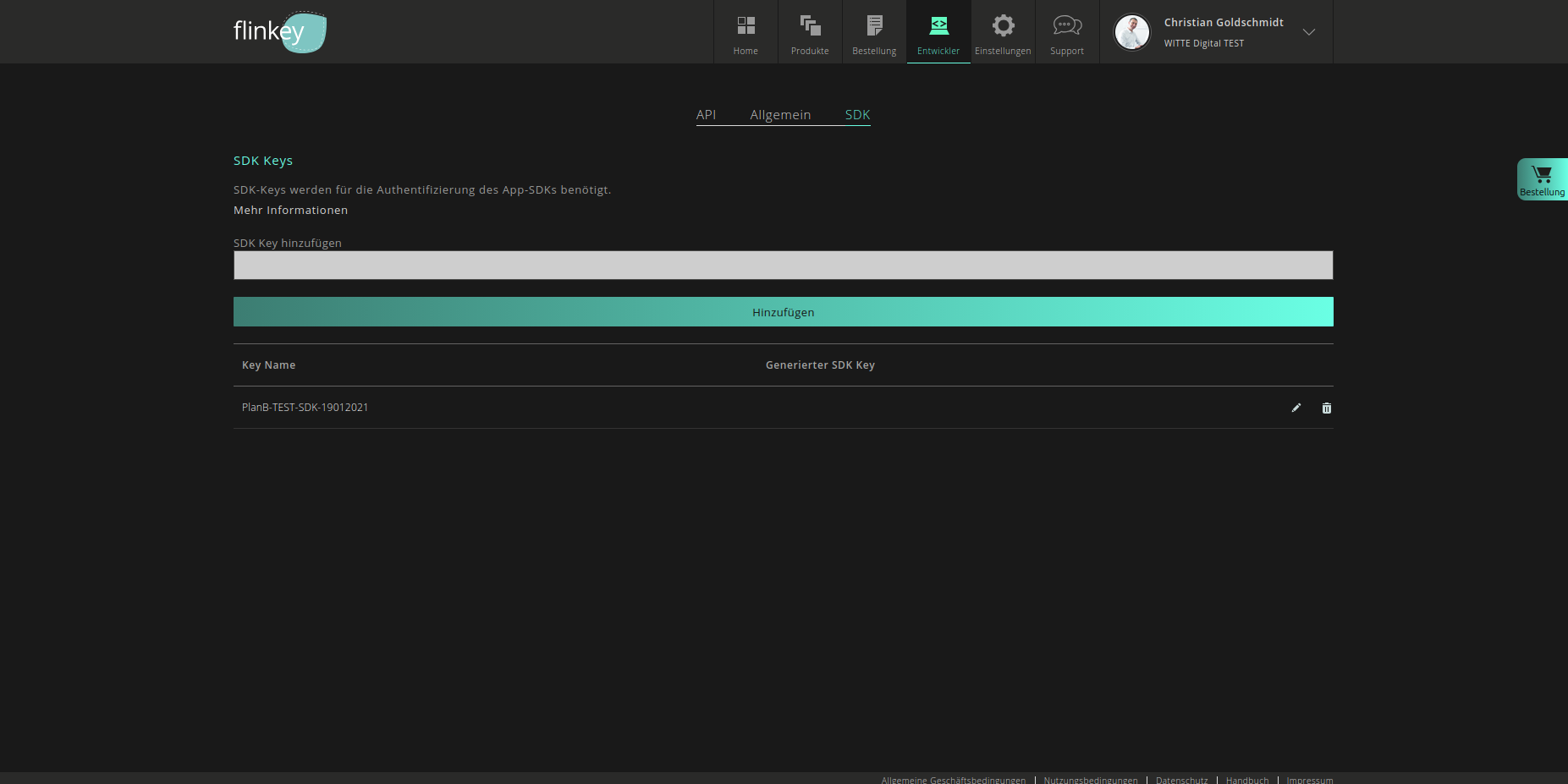
Section titled “SDK tab”The SDK tab is where you manage SDK Keys for the Tapkey Mobile SDK integration.
Customer-ID and flinkey-API-Key
Section titled “Customer-ID and flinkey-API-Key”Both values are found in the API tab and are required for every backend integration.
| Credential | Purpose | Environment variable |
|---|---|---|
| Customer-ID | Identifies your customer context for API requests | FLINKEY_CUSTOMER_ID |
| flinkey-API-Key | Authenticates API requests | FLINKEY_API_KEY |
API Managers
Section titled “API Managers”API Manager credentials are used by your backend to request OAuth access tokens via POST /oauth2/token.
| Credential | Environment variable |
|---|---|
| Username | FLINKEY_API_MANAGER_USERNAME |
| Password | FLINKEY_API_MANAGER_PASSWORD |
API Manager credentials must only be used in trusted backend environments — never in mobile apps, frontend applications or browser JavaScript.
Create or confirm an API Manager for each integration environment before starting development.
Webhook configuration
Section titled “Webhook configuration”Webhook settings are managed in the API area. Webhooks are used by flinkey to send asynchronous events (e.g. assignment results) to your backend.
| Setting | Environment variable |
|---|---|
| Webhook URL | FLINKEY_WEBHOOK_URL |
| Webhook secret | FLINKEY_WEBHOOK_SECRET |
Your webhook endpoint should:
- use HTTPS,
- validate the configured webhook secret,
- process duplicate events safely (idempotency),
- persist assignment state changes,
- return a successful HTTP response only after the event has been accepted.
SDK Keys
Section titled “SDK Keys”SDK Keys are managed in the SDK area and are required for partner app integrations using the Tapkey Mobile SDK.
| Setting | Environment variable |
|---|---|
| SDK Key | FLINKEY_SDK_KEY |
Use separate SDK Keys for different environments or app contexts when applicable.
Environment variable setup
Section titled “Environment variable setup”Configure all partner-specific values through environment variables. Use the following naming convention:
# flinkey APIFLINKEY_API_BASE_URL=https://api-uat.flinkey.de/v3FLINKEY_CUSTOMER_ID=FLINKEY_API_KEY=
# API Manager credentialsFLINKEY_API_MANAGER_USERNAME=FLINKEY_API_MANAGER_PASSWORD=
# WebhooksFLINKEY_WEBHOOK_URL=FLINKEY_WEBHOOK_SECRET=
# Mobile app / Tapkey Mobile SDKFLINKEY_SDK_KEY=
# UATFLINKEY_UAT_API_BASE_URL=https://api-uat.flinkey.de/v3FLINKEY_UAT_CUSTOMER_ID=FLINKEY_UAT_API_KEY=FLINKEY_UAT_API_MANAGER_USERNAME=FLINKEY_UAT_API_MANAGER_PASSWORD=FLINKEY_UAT_WEBHOOK_URL=FLINKEY_UAT_WEBHOOK_SECRET=FLINKEY_UAT_SDK_KEY=
# PRODFLINKEY_PROD_API_BASE_URL=https://api.flinkey.de/v3FLINKEY_PROD_CUSTOMER_ID=FLINKEY_PROD_API_KEY=FLINKEY_PROD_API_MANAGER_USERNAME=FLINKEY_PROD_API_MANAGER_PASSWORD=FLINKEY_PROD_WEBHOOK_URL=FLINKEY_PROD_WEBHOOK_SECRET=FLINKEY_PROD_SDK_KEY=Credential handling rules
Section titled “Credential handling rules”- Store credentials only in the flinkey Portal and your secure environment.
- Read credentials from environment variables or a secret manager.
- Mask credentials and bearer tokens in logs and error messages.
- Never store real credentials in Git, Notion, tickets, screenshots or AI prompts.
Readiness checklist
Section titled “Readiness checklist”Before continuing to the Quickstart, confirm:
- Developer feature is enabled for your account
- You can access the Developer section in UAT
- You know where to find Customer-ID and flinkey-API-Key
- You know where API Managers are managed
- You know where webhooks are configured
- You know where SDK Keys are managed
- Your backend can use environment variables or a secret manager
- You understand that UAT and PROD credentials are separate